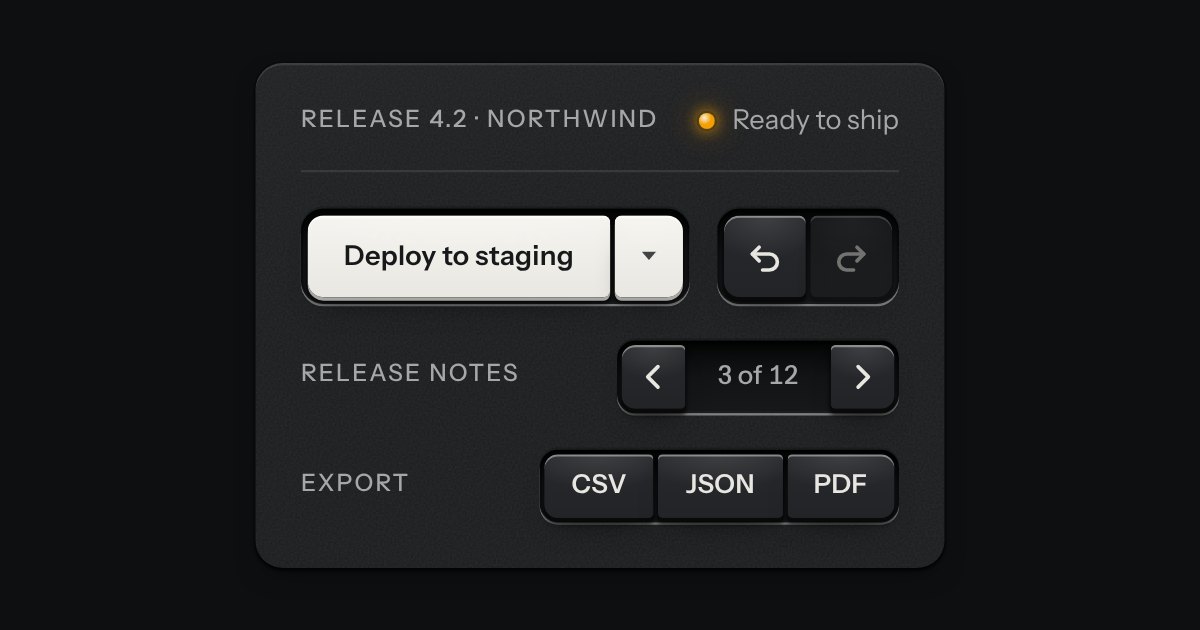
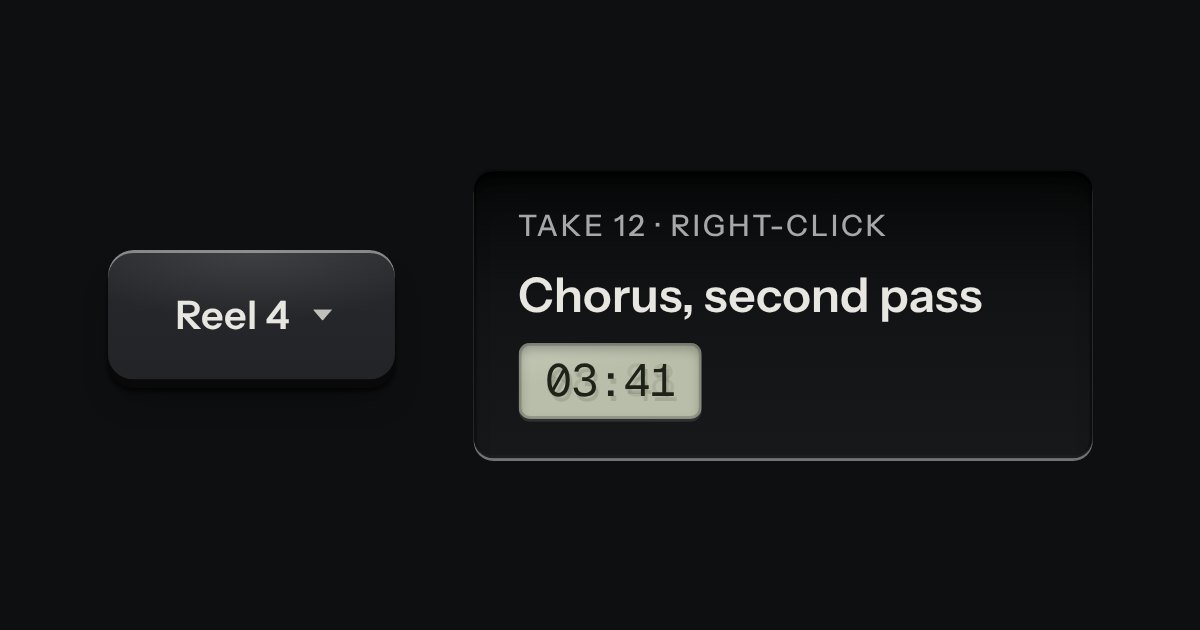
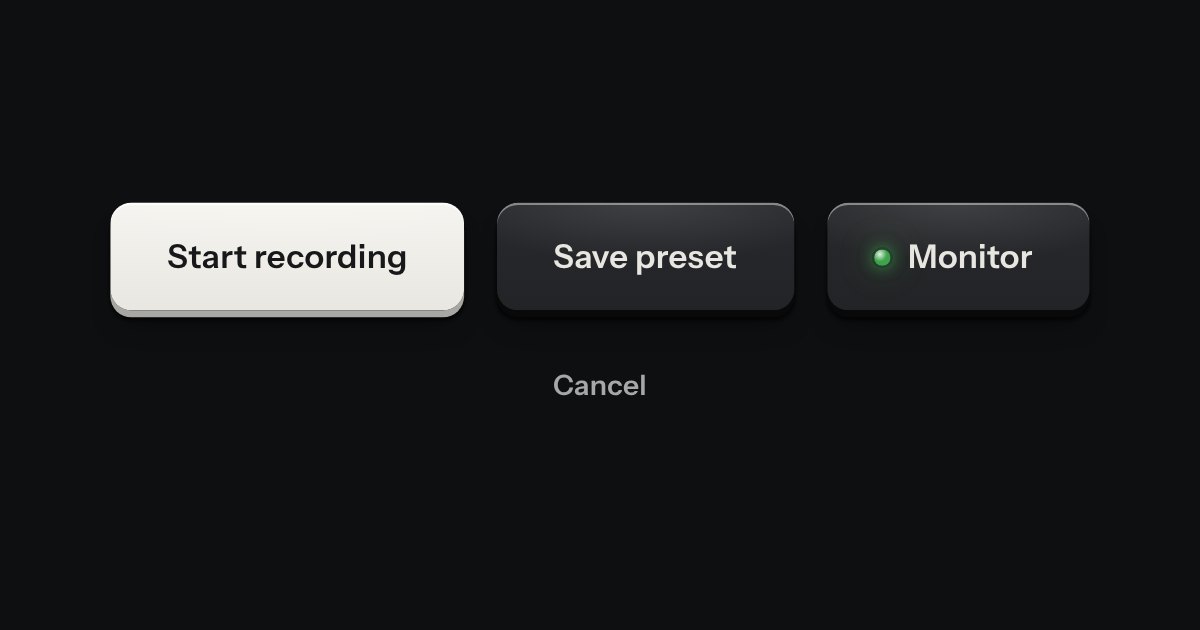
An action and the menu of its other ways, as two keys in one outline: Save, and a narrow key beside it for Save as draft or Save and close. The wide key is a real button that does what its words say. The narrow one opens a menu. They share the outer corners and one hairline between them, and each goes down on its own.
Seats open in 11 days. Want one email that morning?
Anatomy
Two of the kit’s keys set flush, so each is still its own cap on its own skirt and goes down by itself. The pair is only an inline-flex row: the corners that face outward are the key’s own radius and the shared edge is square, which is concentric with nothing to adjust. The hairline is drawn inside the narrow key’s left edge so it moves with that key when it is pressed. The script is one listener that hangs the menu’s card from the whole split instead of from the narrow key; the rest is the menu part.
Variants
Default
Contrast · one for a surface
Flat · quiet
Small
Small and flat
The card out · drawn open
Off · the whole split
Off · only the menu
States
Rest
Hover
Pressed
Focused
Off · card out
Props and options
Name
Kind
Description
disabled
attribute
The whole split is off, or only the menu is.
Enter · Space
keyboard
Do the action.
Enter · Space · ↓
keyboard
Open the card on its first line; ↑ opens on the last.
Escape
keyboard
Close it and return the focus to the narrow key.
Usage notes
Press Save: it saves. Press the narrow key, or focus it and press Enter, Space or Down: the other ways open beneath. Escape closes the card and puts the focus back on the narrow key.
Accessibility
Two native buttons in a named group. The wide key is announced by its words and does its action; the narrow one is announced by its label (“More save options”) as a button with a menu, expanded or collapsed. Tab reaches each in turn, so a person who only wants the main action never meets the menu.
The narrow key follows the menu button pattern, from the menu part: Enter, Space and Down open the card on its first line, Up on its last; the arrows, Home, End and a typed letter move; Escape closes the card and returns the focus to the narrow key, and so does choosing a line.
Each key keeps its own state, so a pressed or open key is shown by shape as well as shade: the pressed key sits down on its skirt. When only the menu is off, the action still works and the narrow key leaves the tab order, as any disabled button does.
The card is as wide as its words need, never wider than the screen, and opens upward when it would run off the bottom.
Do not use it to hide the main action. If the alternatives are equally likely, use a button group; if the key only opens a menu and does nothing else, use a menu button.
Keys that belong together set side by side in one slot, like the transport keys of a deck. Each is still its own cap and goes down on its own; only the corners facing a neighbour are tightened, so the row reads as one bank. A split key is one action with the menu of its other ways, two caps in one slot, and a readout can be printed between keys.
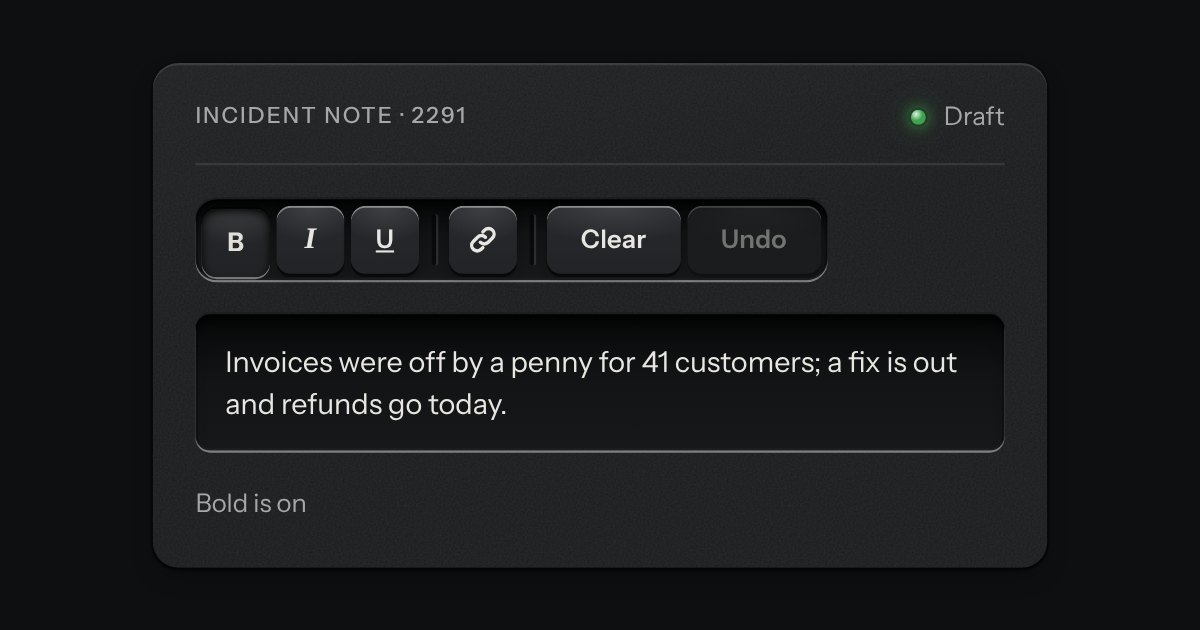
A rack of keys in one slot cut into the plate, under one tab stop. Keys, toggle keys, a copy key and a menu key sit side by side, parted into clusters by engraved lines, and the arrow keys move along it so a keyboard user passes the whole rack with one Tab.