Onboarding
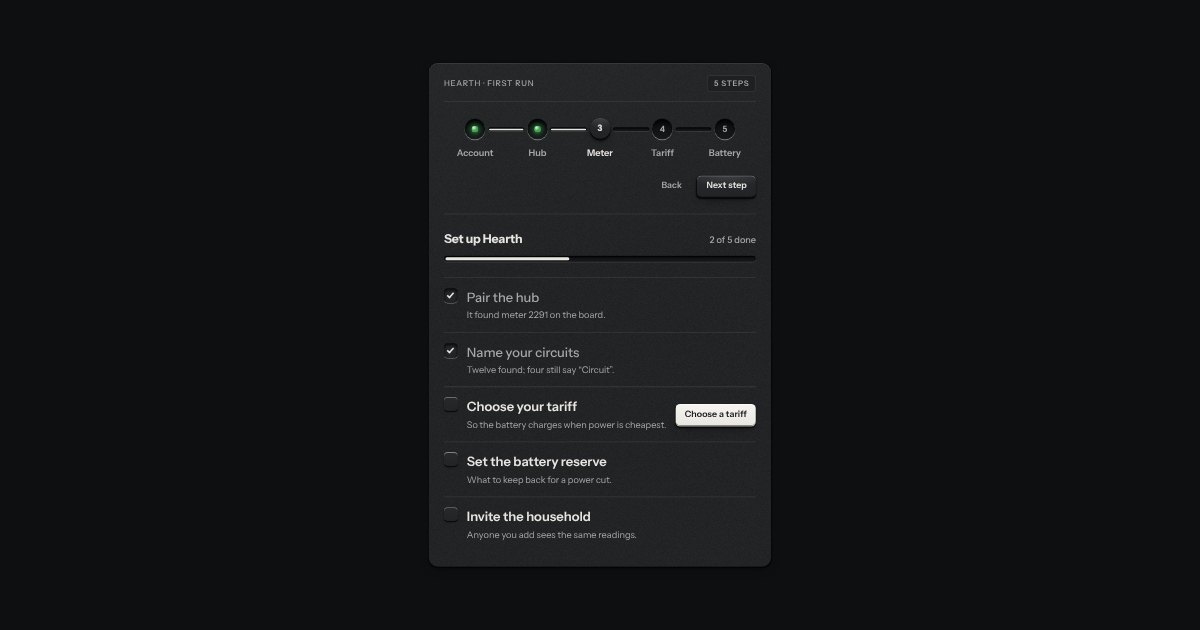
Setting something up: stations along a groove (done ones with their lamp lit, the current one a raised cap) and a checklist of check keys with a progress slot.
Kit parts
Onboarding as the program dial of an appliance on its first run. Each step is a detent on a rotary dial, its number and name engraved round it, and the panel beside it shows that step’s few fields. A step that is done lights a green lamp by its mark, and the one you are on an amber one. The dial turns back freely, and forward only as far as the first step not yet done.
Seats open in 11 days. Want one email that morning?
Each step is a section of your own. The fluting round its skirt is a repeating conic gradient that starts at that angle, under a light that does not move. The grip bar across the cap is rotated by it, and its own gradients are turned back by the same angle, so its lit edge stays toward the lamp at every step. The marks are placed round the middle with the sine and cosine of each detent, their words running away from the dial on either side. What the dial may do is pure.
| Name | Kind | Description |
|---|---|---|
| step · done | property | Where the dial points, and the steps that are done. |
| go(n) · next() · back() | method | Turn to step n if the dial may go there; check this step’s fields and move on; go back one. Each says whether it moved. |
| Arrows · Page Up · Page Down · Home · End | keyboard | A step back or on, the first step, and the furthest it may reach. Enter in a field is Next. |
| setupDialFaceHTML · setupDialReach · setupDialTurn · setupDialState · setupDialAngle · setupDialNearest · setupDialText · setupDialMark | function | The face as markup, and the rules under it, pure: how far the dial may go, where a turn ends, what each step is, a detent’s angle and the one nearest a drag, the slider’s words, and where a mark sits. |
Fill in the account and press Next: its lamp goes green and the dial turns. Then try turning past a step that is not done. Drag the knob, scroll on it, press a step’s name, or tab to it and use the arrow keys.
Setting something up: stations along a groove (done ones with their lamp lit, the current one a raised cap) and a checklist of check keys with a progress slot.
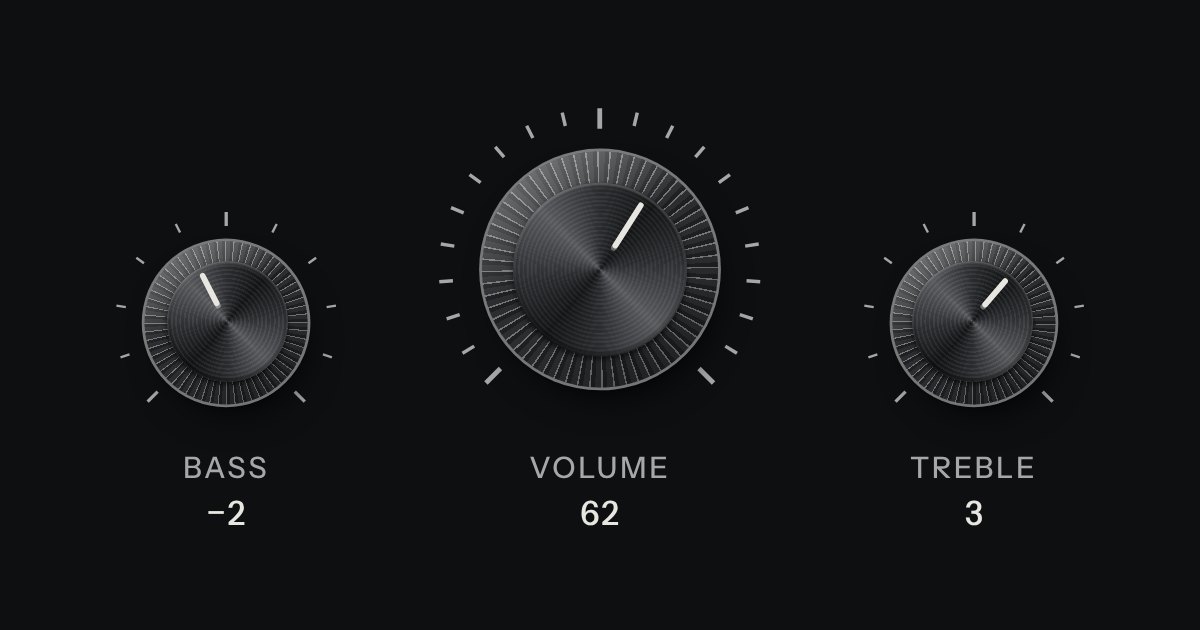
A rotary control for continuous or stepped values where space is square. Its knurl and pointer turn; its light does not.
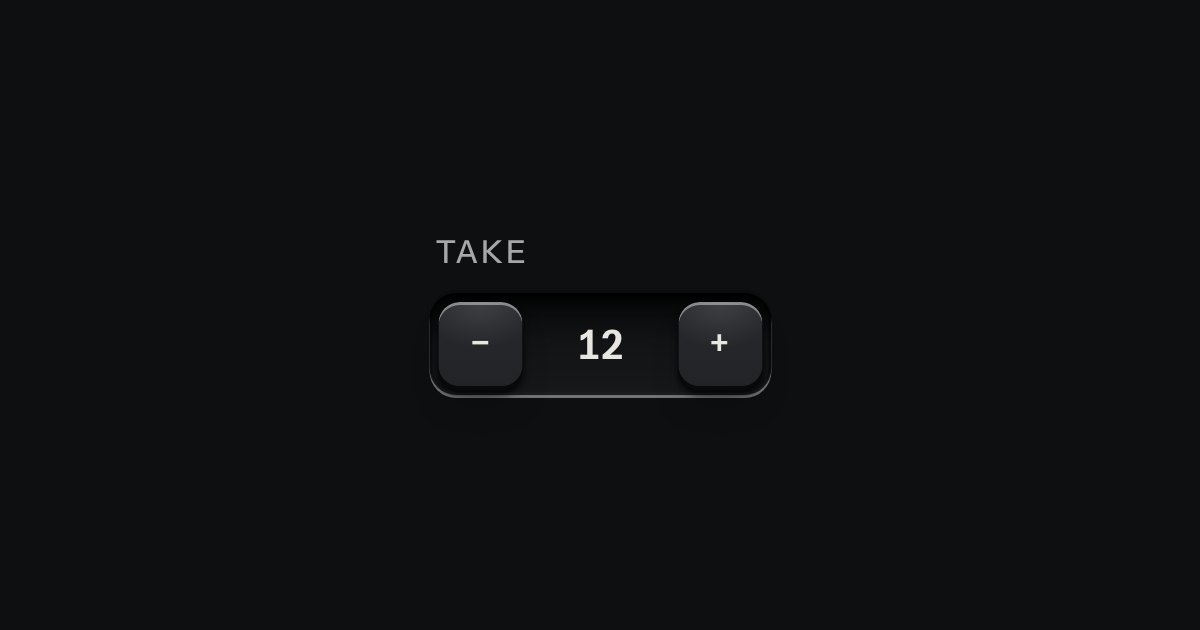
A small integer with − and + keys either side, in one well.